




How to Save WeTransfer Files to Google Drive Without Downloading (2026 Guide)
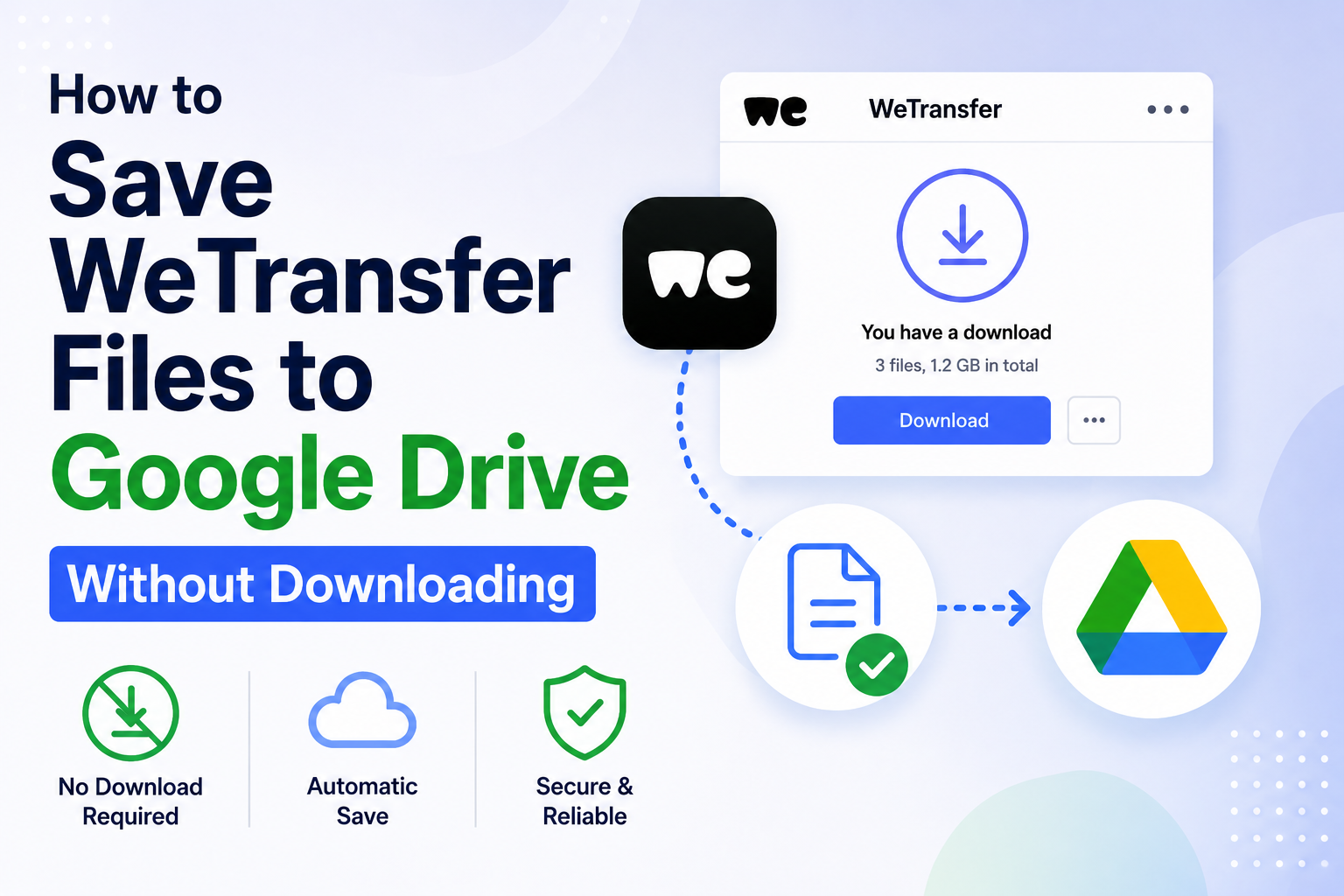
Short answer: The fastest way to move a WeTransfer file into Google Drive is to skip the download entirely. Paste your WeTransfer link into WeToDrive, sign in with Google, and the file streams directly from WeTransfer into your Drive — no local download, no re-upload, and no waiting for a 2 GB file to crawl onto your laptop twice.
If you’ve ever raced the clock to grab a WeTransfer link before it expired, this guide is for you.
Why saving WeTransfer files to Google Drive matters
WeTransfer is brilliant for sending files. It’s terrible for keeping them. Free WeTransfer download links typically expire in 7 days (and even paid transfers are commonly capped around 30 days unless you extend them). Once that window closes, the file is gone — along with the client deliverable, the wedding photos, or the 4K video someone sent you.
Google Drive is the opposite: files you save there are yours permanently, searchable, shareable, and synced across every device. So the smart workflow is simple — the moment a WeTransfer link lands in your inbox, get it into Drive.
The only question is how you move it without wasting time and storage.
The old way: download, then upload (and why it’s painful)
The manual route looks like this:
- Open the WeTransfer link and download the file to your device.
- Wait for it to finish (a 3 GB transfer can take 10–20 minutes on average home broadband).
- Open Google Drive and upload the same file back up.
- Wait again for the upload.
- Delete the local copy to reclaim space.
You’ve now moved the same data across the internet twice, burned device storage you may not have (a problem on phones and Chromebooks), and doubled your wait time. For anyone who receives files regularly — designers, video editors, photographers, agencies — this adds up to hours every month.
The smart way: stream WeTransfer directly to Google Drive
A direct-transfer tool removes the middle steps entirely. Instead of routing the file through your device, it streams the data from WeTransfer’s servers straight to Google Drive’s servers. Your laptop or phone is just the remote control.
WeToDrive is built specifically for this. Here’s what makes the direct method better:
- No downloads, no uploads — nothing touches your local storage.
- No device-storage limits — transfer a 5 GB file from a phone with a full storage bar.
- Faster end-to-end — server-to-server transfer skips your home connection as the bottleneck.
- Permanent ownership — the file lives in your Drive long after the WeTransfer link dies.
“WeToDrive automatically transfers files from WeTransfer directly to your Google Drive — no downloads, no uploads, no storage worries.”
How to transfer WeTransfer to Google Drive in 3 steps
Here’s the entire process, start to finish:
Step 1 — Sign in with Google.
Go to WeToDrive and connect your Google account. This grants permission to save files into your Drive and nothing else.
Step 2 — Paste your WeTransfer link.
Copy the link from your email or message. Every format works — short we.tl links and full wetransfer.com/downloads/... URLs alike.
Step 3 — Click “Transfer to Google Drive.”
The file streams directly into your Drive. When it’s done, you’ll get a link to view it in Drive — and a copy that never expires.
That’s it. No software to install, nothing to download, no manual re-upload.
WeTransfer to Google Drive: methods compared
| Method | Uses device storage? | Two transfers? | Survives link expiry? | Best for |
|---|---|---|---|---|
| WeToDrive (direct stream) | ❌ No | ❌ No (server-to-server) | ✅ Yes | Anyone receiving files regularly |
| Manual download + upload | ✅ Yes | ✅ Yes | ✅ Yes | One-off small files |
| Zapier / automation | ❌ No | ❌ No | ✅ Yes | Developers comfortable with setup |
| Leave it in WeTransfer | — | — | ❌ No | Not recommended |
Is it safe to connect Google Drive?
Yes — and it’s worth understanding why. With a direct-transfer tool like WeToDrive, files stream through an encrypted connection between WeTransfer and Google Drive and are saved immediately into your private Drive. The service doesn’t keep a permanent copy of your file. Google’s OAuth sign-in also means you never hand over your password — you grant scoped permission that you can revoke anytime from your Google Account permissions page.
Who should use this
- Designers & agencies receiving client assets on tight deadlines.
- Video editors & photographers handling multi-gigabyte files that won’t fit on a laptop.
- Remote teams standardizing on Google Drive as the single source of truth.
- Anyone on a phone or Chromebook with limited local storage.
Frequently asked questions
Can I save WeTransfer files to Google Drive without downloading them first?
Yes. Tools like WeToDrive stream the file directly from WeTransfer to Google Drive, so it never downloads to your device. You paste the link, sign in with Google, and the transfer happens server-to-server.
How long do WeTransfer links last before they expire?
Free WeTransfer download links typically expire after about 7 days. Saving the file to Google Drive keeps it permanently, long after the original link stops working.
Does this work on a phone?
Yes. Because the file never downloads to your device, you can move large WeTransfer files into Google Drive from a phone or tablet — even one with little free storage.
Do I need to install any software?
No. WeToDrive runs entirely in your browser. There’s nothing to download or install.
Is it free?
WeToDrive offers a free tier to get started, with paid plans for larger files and higher transfer volumes.
Will the file lose quality during transfer?
No. The original file is copied byte-for-byte into your Google Drive — no compression or quality loss.
Ready to stop racing the expiry clock? Save your next WeTransfer file straight to Google Drive with WeToDrive →